
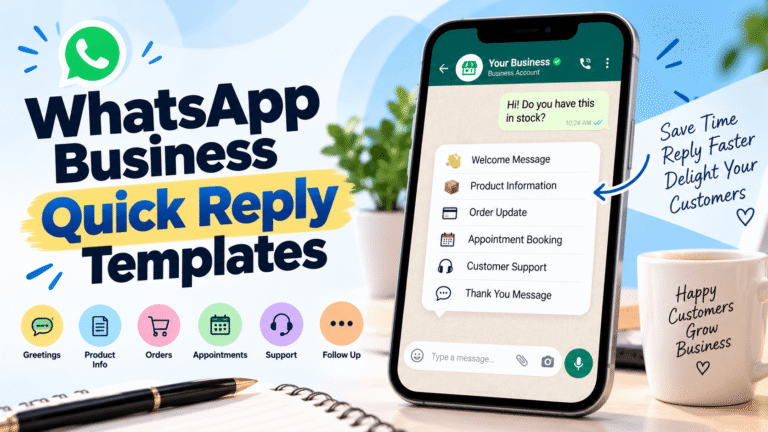
Quick Answer: What to Say in a WhatsApp Business Quick Reply
WhatsApp Business's free Quick Replies feature (Business Tools → Quick Replies) lets you save a message and fire it with a shortcut like /hours, cutting reply time from minutes to seconds. But the feature is only half the job — what actually gets you replying faster is having the right message already written for your most common enquiries: pricing, availability, order status, and closing. Below are ready-to-copy templates for each, plus how to load them into the app.
If you run a small business in India, chances are your customers are already trying to reach you on WhatsApp before they try anything else. The businesses that turn those messages into sales aren’t necessarily the ones with the fanciest chatbot — they’re usually the ones who reply fast, in plain language, with an answer that’s actually useful. This guide walks through exactly what to write in your WhatsApp Business quick replies, why it matters more than most guides let on, and how to set it up in the free app today.
Why does WhatsApp reply speed actually matter for small businesses?
If you run a small business in India, WhatsApp probably isn’t a “nice to have” contact channel — it’s where most of your enquiries actually land, ahead of a phone call, an email, or a form on your website. That makes reply speed a direct, measurable lever on how many enquiries actually turn into sales.
Meta’s own 2026 State of Business Messaging report, based on research by Kantar across 22 global markets including India, puts numbers on why this matters:
What consumers say about messaging a business
Source: Business Messaging Usage Research, Kantar, commissioned by Meta Platforms Inc. Online study of 11,056 adults across 22 global markets including India, conducted April–September 2025.
An earlier Kantar survey commissioned by Meta, focused specifically on India, found that 86% of online adults in the country message a business at least once a week — well above the global average at the time. Put simply: your customers are already messaging you first. Whether that message turns into a sale usually comes down to how fast, and how clearly, you reply.
This is exactly the gap a slow or generic reply creates. A customer asking “is this available?” or “what’s the price?” doesn’t want to wait an hour for an answer they could have gotten in ten seconds — and if you’re not replying fast, they’re messaging your competitor next.
There’s also a compounding effect specific to small businesses that larger companies don’t feel as sharply: you’re usually the one replying to WhatsApp messages yourself, in between everything else the business needs from you — sourcing stock, managing staff, fulfilling orders. Every minute spent typing out the same answer to “is this available” or “what’s the price” is a minute taken from running the business itself. That’s the practical reason reply templates matter more for a solo or small-team business than for a large enterprise with a dedicated support desk: the time saved goes straight back into the parts of the business only you can do.

What’s the fastest way to reply to WhatsApp Business enquiries?
Before reaching for a paid tool, it’s worth knowing that WhatsApp Business already includes a free feature built exactly for this: Quick Replies. According to the WhatsApp Help Center, Quick Replies let you save a message once and send it instantly using a shortcut, so you’re not retyping the same answer for the tenth time that day.
Here’s the basic setup:
1. Open WhatsApp Business and tap the three dots (Android) or Settings (iOS) in the top corner.
2. Go to Business Tools (sometimes labelled Business Settings).
3. Tap Quick Replies, then the + icon to add a new one.
4. Type your message, set a shortcut (e.g. /price), and save.
5. During any chat, type the shortcut and your saved message loads instantly, ready to send.
That’s the mechanism. It’s free, it’s built into the app you already use, and it takes about five minutes to set up. The part that actually determines whether your replies help you close a sale isn’t the shortcut — it’s the words you put behind it. That’s the part most guides skip, so it’s what the rest of this post focuses on.
What should your WhatsApp Business quick reply templates actually say?
Below are templates organised by the situations Indian small businesses hit most often — greetings, pricing and availability, order and delivery status, payment, location and hours, refunds, and closing a conversation. Copy these directly into your Quick Replies, or adjust the tone to match your brand. Anywhere you see a bracket like [price] or , that’s a spot to personalise.
Greeting messages
Shortcut: /hi
“Hi! Thanks for messaging [Business Name] 🙏 How can we help you today?”
Shortcut: /welcome
“Welcome to [Business Name]! We usually reply within a few minutes during [business hours]. Let us know what you’re looking for and we’ll get right to it.”
Shortcut: /hiafterhours
“Hi! We’ve received your message. Our team is currently offline but will reply first thing at [opening time]. Thanks for your patience!”
Pricing and availability
Shortcut: /price
“[Product/Service] is priced at ₹[amount]. Would you like me to share more details or photos?”
Shortcut: /stock
“Let me check that for you right away — give me a moment to confirm current stock and I’ll reply within a few minutes.”
Shortcut: /outofstock
“That one’s currently out of stock, but we expect it back by [date]. Would you like me to notify you the moment it’s available?”
Shortcut: /bulk
“For bulk or wholesale orders, pricing depends on quantity. Could you share how many units you’re looking for so I can send an accurate quote?”
Order and delivery status
Shortcut: /orderconfirm
“Your order for has been confirmed! We’ll share the delivery timeline shortly. Thank you for shopping with us.”
Shortcut: /shipping
“Your order is on its way and should reach you within [X] business days. I’ll share the tracking link as soon as it’s dispatched.”
Shortcut: /delay
“Sorry for the delay on your order — we’re working to get it to you as soon as possible. I’ll update you personally by [day/time].”
Payment
Shortcut: /payment
“You can pay via UPI, bank transfer, or cash on delivery. Let me know which works best and I’ll share the details.”
Shortcut: /paymentconfirm
“Payment received, thank you! Your order is now being processed.”
Location and business hours
Shortcut: /location
“We’re located at [address]. Here’s a map link for directions: [Google Maps link]. Let us know if you need help finding us!”
Shortcut: /hours
“We’re open [days] from [opening time] to [closing time]. Feel free to drop by or message us anytime — we’ll reply as soon as we’re back online.”
Refunds and cancellations
Shortcut: /cancel
“No problem, I’ve noted your cancellation request for [order/product]. You’ll receive a confirmation shortly. Is there anything we could have done better?”
Shortcut: /refund
“Sorry to hear that. Your refund of ₹[amount] has been initiated and should reflect in your account within [X] business days.”
Closing and follow-up
Shortcut: /thanks
“Thank you for reaching out! If you have any other questions, feel free to message us anytime — we’re happy to help.”
Shortcut: /followup
“Just checking in — were you able to look at the details I shared? Happy to answer any questions before you decide.”
Shortcut: /review
“Glad we could help! If you have a minute, a quick review would mean a lot to our small business 🙏”
Fourteen templates cover a large share of daily WhatsApp traffic for most small businesses, but they’re a starting point, not a finish line — every business has its own recurring questions. If you’d rather not write and test these from scratch, the WhatsApp Business quick reply templates in our WhatsApp Sales Kit come pre-written and organised by category, ready to paste straight into the app.
How do you set these up as actual Quick Replies in WhatsApp Business?
Once you’ve picked or written your templates, loading them into the app takes a few minutes per message:
Step 1: Open WhatsApp Business → tap the three dots (Android) or Settings (iOS).
Step 2: Tap Business Tools → Quick Replies.
Step 3: Tap the + icon and paste in your message text.
Step 4: Set a shortcut — keep it short and memorable, like /price or /hi, so you can recall it mid-chat.
Step 5: Save. To use it, open any chat, type / followed by your shortcut, and the full message loads instantly — edit if needed, then send.
A couple of practical notes worth knowing before you set these up:
- The free WhatsApp Business app currently allows up to 50 quick replies, each up to a set character limit — plenty for most small businesses.
- Quick Replies only work if you’re using them yourself. They’re not automatic — you still choose which one to send and when, which keeps replies personal even while saving you typing time.
- If you’re managing WhatsApp Business as a team, only one person can be logged in on the free app at a time. That’s the point where several businesses start looking at automation instead — more on that below.
What common mistakes slow down WhatsApp replies, even with templates in place?
Having templates saved doesn’t automatically fix response time — a few habits quietly undo the benefit:
Templates that read like a form letter
A quick reply that sounds robotic (“Your query has been noted”) can feel slower and colder than a short, natural response, even if it’s sent instantly. Every template above uses everyday language on purpose — customers on WhatsApp expect a conversational tone, not an email-style auto-response. Keep names, emojis (used sparingly), and your own phrasing where it fits.
Too many shortcuts to remember
If you save 40 quick replies with cryptic shortcuts like /qr14, you’ll spend more time hunting for the right one than you would just typing the answer. Keep shortcuts short and literal — /price, /hours, /delay — so they’re easy to recall mid-conversation.
Not updating templates when things change
A quick reply is only fast if it’s also accurate. An outdated price, an address that’s changed, or a delivery timeline that no longer applies turns a fast reply into a wrong one — which usually costs more time (and trust) to correct than a slightly slower, accurate answer would have. Review your saved replies every time your pricing, stock, or hours change.
Relying on one person to send every reply
The free WhatsApp Business app only allows one person logged in at a time. If you’re the only one who can access it, every enquiry queues up behind whatever else you’re doing that day — which is usually the real bottleneck, not the lack of a quick reply. This is the clearest signal that it’s time to look at either a second number, or the WhatsApp Business API with a team inbox layered on top.
What’s the difference between quick replies, auto-replies, and full automation — and when do you need more than the free app?
This is the part that trips up most small business owners, because these three things get lumped together as “WhatsApp automation,” but they’re genuinely different tools for different jobs:
Quick Replies (what this post covers)
Manual, but fast. You choose the message and send it yourself with a shortcut. Nothing happens without you tapping send. Free, built into the app, best for businesses handling up to a few dozen enquiries a day themselves.
Greeting and Away messages
Also free and built into WhatsApp Business, but these send automatically — a greeting when someone messages you for the first time, or an away message outside business hours. No typing required once set up, but you can’t customise the reply based on what the customer actually asked.
Full automation (WhatsApp Business API + a platform)
This is where chatbots, keyword-triggered flows, and 24/7 AI responses come in — tools like the ones offered by larger SaaS platforms. It requires connecting the WhatsApp Business API to a separate platform, since the API itself has no interface of its own. This is worth it once your enquiry volume genuinely outpaces what one person typing quick replies can handle, or you’re managing WhatsApp with a team.
A simple way to decide where you stand: if you can count your daily WhatsApp enquiries on two hands and you’re the only one replying, the free app with well-written Quick Replies is genuinely enough — don’t add a subscription you don’t need yet. If you’re regularly losing track of chats, replying hours late, or need more than one person answering from the same number, that’s the point where the API and a proper inbox tool start paying for themselves.
For most solo and small-team businesses just starting to systemise their WhatsApp replies, the free app with a well-written set of Quick Replies, plus a Greeting and Away message, covers the vast majority of daily enquiries — no monthly subscription required. That’s exactly the gap the WhatsApp Sales Kit is built for: it skips the paid-API step entirely and gives you the templates and setup guidance to get fast, consistent replies going in the free app today.
Want the full set of ready-to-use templates?
The WhatsApp Sales Kit gives you these quick reply templates and more, already organised by category and written for Indian small businesses, ready to paste straight into the free app.
Get the WhatsApp Sales Kit →Looking for more low-cost digital tools built for Indian solopreneurs and small businesses? Browse the full 10X AI Leaders AI Store.
References
WhatsApp Help Center — How to use Quick Replies: faq.whatsapp.com
Meta, “The State of Business Messaging” (2026 Consumer Report), Business Messaging Usage Research by Kantar, commissioned by Meta Platforms Inc., April–September 2025: whatsappbusiness.com
Kantar, “Business Messaging Usage” survey commissioned by Meta, India findings, 2022, reported via Social Samosa and Deccan Herald.
Frequently Asked Questions
What is a WhatsApp Business quick reply?
A WhatsApp Business quick reply is a saved message you can send instantly using a shortcut, instead of typing the same answer every time a customer asks a common question. It’s a free feature built into the WhatsApp Business app, found under Business Tools then Quick Replies.
Can I use quick replies on a personal WhatsApp account?
No, Quick Replies are a feature of the WhatsApp Business app, not the standard personal WhatsApp app. If you’re using WhatsApp for business communication, switching to WhatsApp Business (it’s free) unlocks Quick Replies along with Greeting and Away messages.
Can I set up quick replies on the WhatsApp Business API?
The WhatsApp Business API itself doesn’t have an app-style interface, so Quick Replies as described here are specific to the free WhatsApp Business app. On the API, similar saved-message functionality is typically offered through whichever customer messaging platform you connect the API to.
How do I remove or edit a quick reply in WhatsApp Business?
Go to Business Tools then Quick Replies, tap the quick reply you want to change, and you’ll see options to edit the message and shortcut or delete it entirely.
Getting replies out fast only helps if what you’re sending is worth reading. Fourteen well-written templates, tied to the questions your customers actually ask, will do more for your WhatsApp sales than any automation tool bolted on top of a generic “thanks for your message, we’ll get back to you” — and it’s exactly the approach the WhatsApp Sales Kit is built around.
Ready to build AI capability in your leadership team?Instructor-led, hands-on AI workshops for leaders and managers
Explore AI Training →
About the author
Anupma Singh
Founder & AI Strategy Advisor, 10X AI Leaders · IIT Kanpur
Anupma Singh is the Founder and AI Strategy Advisor of 10X AI Leaders and an IIT Kanpur alumna. She has 25 years of experience across technology, business transformation and AI adoption strategy, including leadership roles at Infosys and Honeywell. She has trained 100+ business leaders and runs instructor-led AI workshops that help leadership teams move from AI-curious to AI-confident.